Creating & editing flags
The batched, explicit-save editing model.
This page covers creating flags and the dashboard's editing model.
Creating a flag
In a project's Flags tab, create a flag with:
- A key in
lowercase_snake_case(e.g.new_checkout). Permanent and used in code — choose carefully. - A type —
boolean,string, ornumber. See Flags & flag types.
The flag is created across all of the project's environments at once; you then target it per environment.
The editing model: explicit Save, not auto-save
Switchbox batches your edits and saves on an explicit click — it never auto-saves on toggle. This is deliberate: a single Save commits a complete, intentional state and publishes the config exactly once, so you never ship a half-finished change or trigger a burst of publishes mid-edit.
As you change a flag — toggling it, editing rules, setting a rollout — an unsaved-changes bar appears with Save and Discard. Nothing reaches your apps until you click Save. Each Save publishes one new config for each environment you changed.
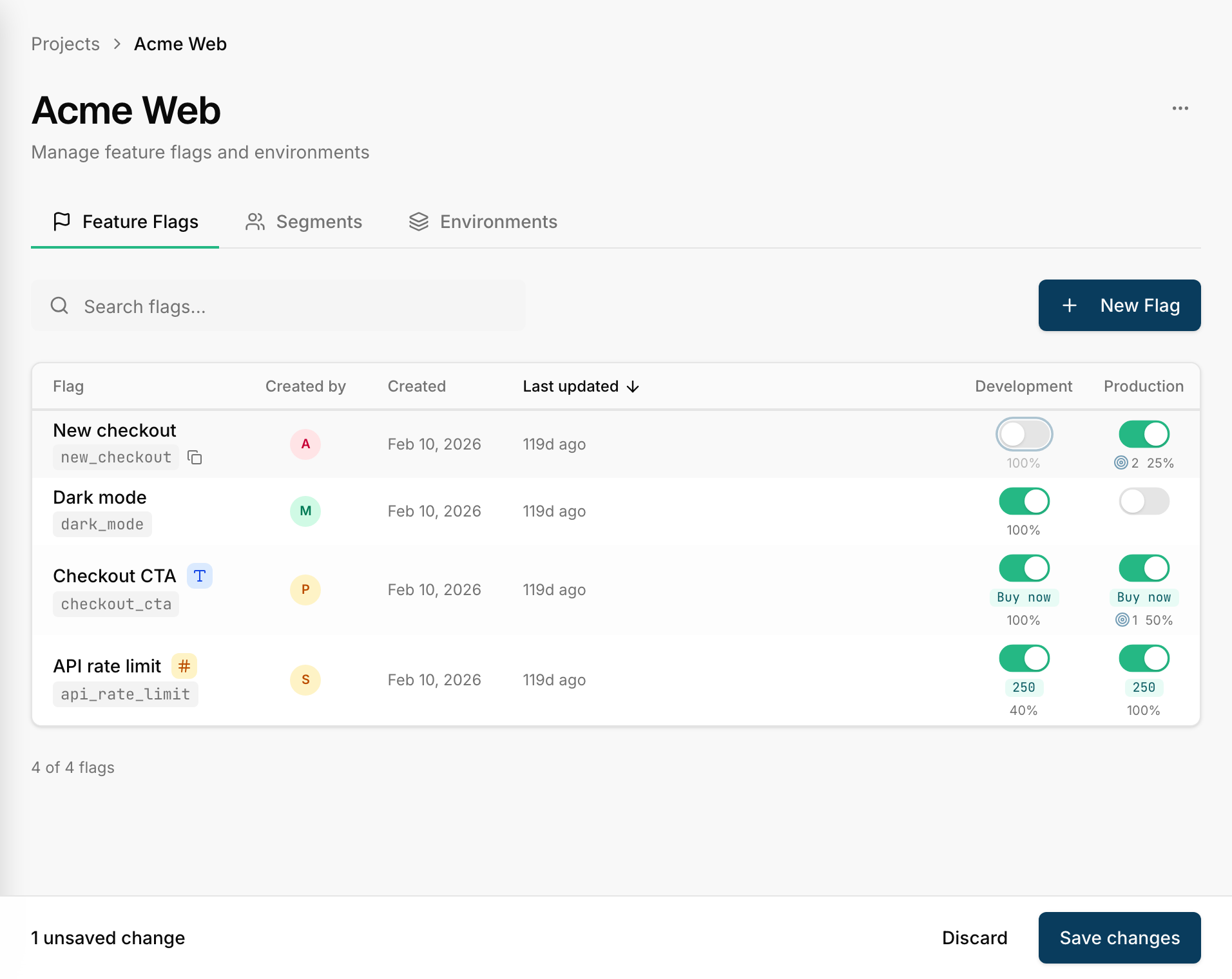
A reload or tab-close while you have unsaved changes warns you first, so edits aren't lost by accident.
You can edit flags from two places, both using this batched model:
- The flags list — quick toggles across many flags, then one Save.
- The flag detail page — full targeting, rollouts, and values for one flag.
Values for string, number, and json flags
Non-boolean flags carry a value pair, edited on the flag detail page (a json
flag's values are edited as JSON in a validated text field):
- Default value — what users get when the flag is off or unmatched.
- Enabled value — what matched / in-rollout users get.
These are authored once at the flag level and apply to every environment.
Need a different value in one environment? Open that environment's value control
and set an override — it applies only there, and clears back to the flag-level
value when you remove it. Boolean flags have no value pair (on is implicitly
true).
Audit log
Every save is recorded — who changed what, and when. See a flag's history on its detail page, and the team-wide feed on the Activity page.
Next
- Rules & rollouts in the UI — targeting and percentages.
- Connection & usage — confirm apps are reading it.