Rotating an SDK key
How rotation works and what the grace period means.
Each environment has one SDK key, found and managed under a project's Environments tab. For what the key is and how it maps to the CDN, see Environments & SDK keys.
Finding and copying a key
On the Environments tab, each environment shows its SDK key with a copy
button. That's the value you pass to the SDK's sdk_key / sdkKey option.
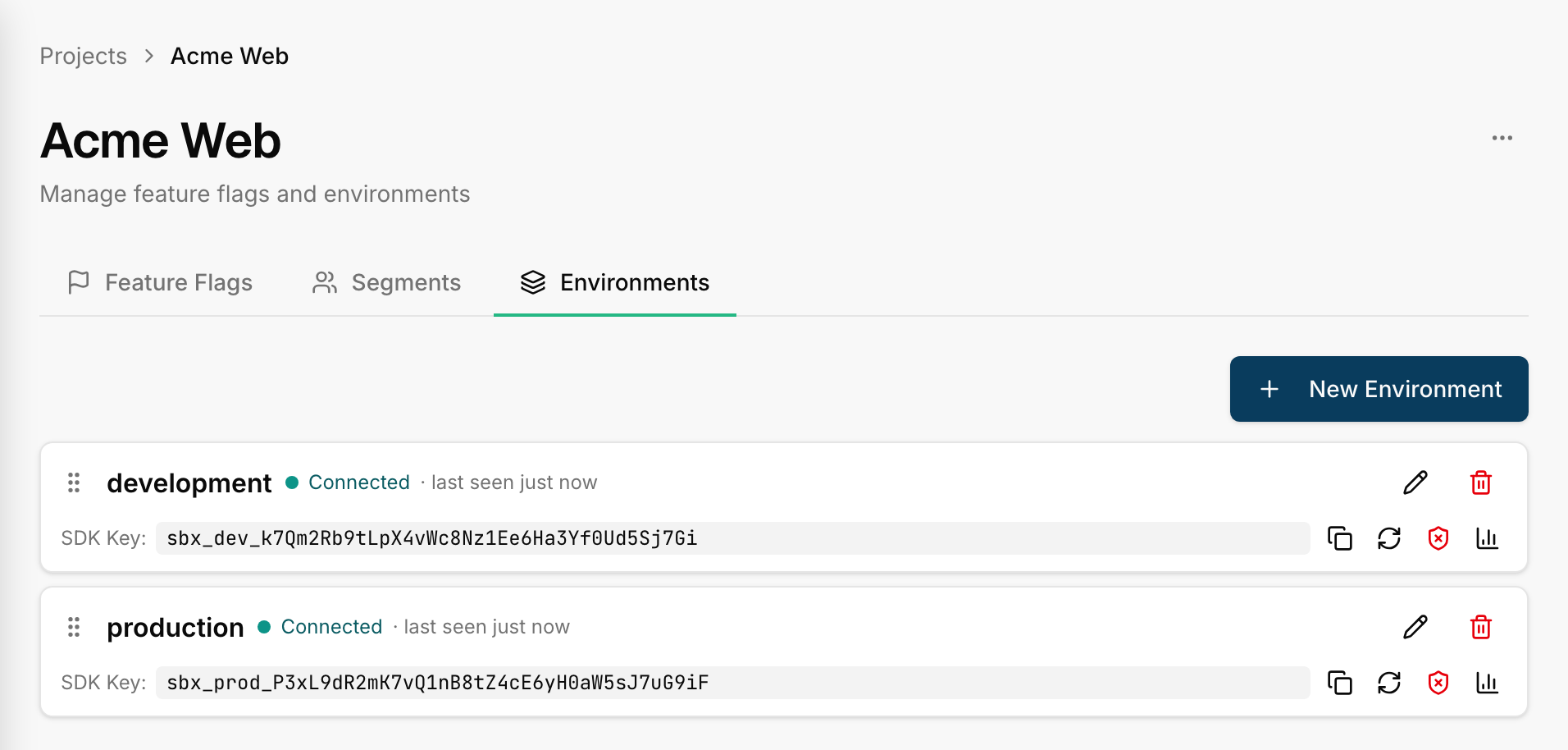
When to rotate
Rotate a key if it's been exposed somewhere it shouldn't be — committed to a public repo, pasted into a shared log, leaked in a screenshot. Rotation issues a new key and retires the old one on a grace period, so you can do it without downtime.
How rotation works
Click Rotate on an environment. Then:
- A new key is generated immediately and becomes the primary CDN path.
- The old key keeps working for 24 hours. During this grace window, Switchbox publishes the config to both the old and the new key's paths, so clients on either key get up-to-date flags.
- Update your apps to the new key and deploy any time within those 24 hours.
- After the grace period, the old key is no longer published and its CDN path returns 404.
Because both keys are live during the window, there's no moment where running clients break. You rotate first and redeploy on your own schedule.
Plan to deploy the new key well within 24 hours. If you can't, rotate again to start a fresh grace window rather than letting the old key expire on clients still using it.
Next
- Environments & SDK keys — the concept.
- Connection & usage — confirm clients picked up the new key.